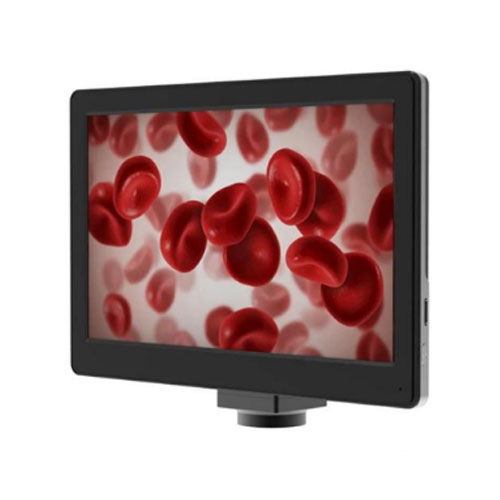
9" LCD Digital Camera, USB2.0 +Mouse Measure, 5.0M
• 9" LCD Screen High Resolution 1024*600 Pixels
• 5.0M Digital Camera 1/2.8" CMOS Sony Sensor
• USB2.0 Real Time Image Output + TF Card Storage
• USB Mouse Control Menu For Measure Function
• DC12V/2A, 100~240V Power Adapter
• Warranty ONE YEAR
| Technical | Specifications |
|---|---|
| Model | SLV-5MS |
| Items | SLV-5MS 9” LCD Digital Camera, USB + Mouse Measure, 5.0M |
| Sensor | 1/2.8" Sony Star Light Level CMOS Sensor |
| Resolution | 5.0M CMOS |
| LCD Screen | 9" LCD, Resolution 1024×600 High Clearance Screen |
| Output | USB 2.0 Type-A, TF Card |
| Pixel Size | 2.0×2.0um |
| Power Supply | DC 12V/2A Power Adapter, Input 100–240V AC |
| Function | Photo, Video, Measure, CompareSupport USB Mouse Control to Capture Photo, Video, Measure, SettingUSB 2.0 to Win7, Win10 System, Software S-Eye IncludedBrightness, Contrast, Exposure, White Balance Adjustable10× Digital Zoom, 4 Split / 2 Split Windows Image CompareStorage To TF CardCross Line With Scale, CalibratedNet Line 8 Kinds, Width & Colour Adjustable |
| Size / Weight | Product Size 225×52×175mm, Net Weight 0.7Kg |
| Standard Package | LCD Camera, USB 2.0 Cable, Mouse, DC12V Power Adapter |
| USB Mouse Control Operation Manual | 1. Insert the mouse into the camera Type-A USB 2.0 port, connect 12V power supply to camera.2. Turn on the power switch, when the camera is running, the LED light turns blue.3. Move the mouse to the top left corner of the screen to call up the MAIN MENU, including icon: Take Photo, Record Video, Preview, Measure, Setting.4. Move the mouse to the middle position at the bottom of the screen to call up the QUICK MENU, including icon:Zoom In, Zoom Out, Up/Down Mirror, Left/Right Mirror, Black/White, HDF, Freeze, Net, Font, 2 Split, 4 Split5. Click the MEASURE icon to pop up the measure window, which support over 20 kinds of measuring graphics.6. Click the EDIT button and fill in the name of new ruler to CALIBRATE. Move the mouse to the corresponding standard scale in the image display window and draw a standard-length scale line. Then fill in the length column and click SAVE to complete the calibration setting. If you want to add more ruler, just repeat above steps.7. Click mm/PIX to open or close the screen scale.8. If the USB port is directly connected to the computer, the screen and the computer can be displayed synchronously (the USB cable must be connected to the computer before the device is powered on). |